Presented by Mike Quinn
February 14, 2019 Attendees: 15
Presentation: Using Password Managers.pptx
PDF: Using Password Managers.pdf
Mike Quinn, relatively new to the Computer Club, shared the top 4 password managers, their key features and pricing to help folks make decisions for remembering their passwords. Password and user IDs have grown and grown in the recent years and relying on memory just won’t work any longer.
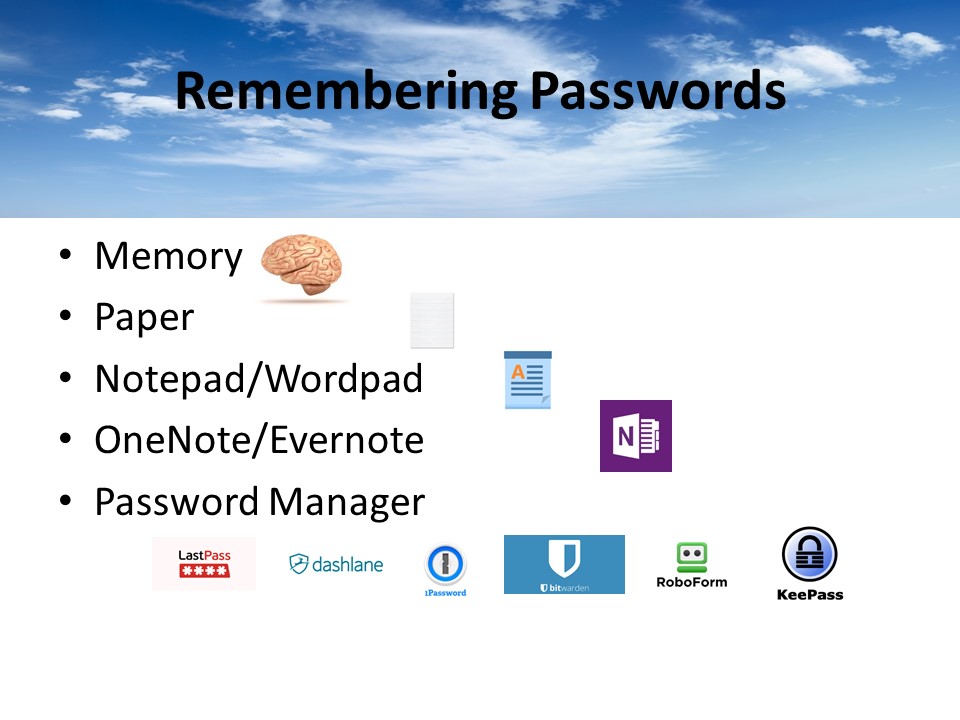
Memory – you know why this is bad
Paper – can get lost, stolen, not encrypted
Notepad/Wordpad – can get deleted, hard to share when it changes, not encrypted
OneNote/Evernote – workable solution if you use encryption. Evernote can unencrypt your docs, so I don’t recommend it.
Password manager – saved in cloud, easy to share, encrypted
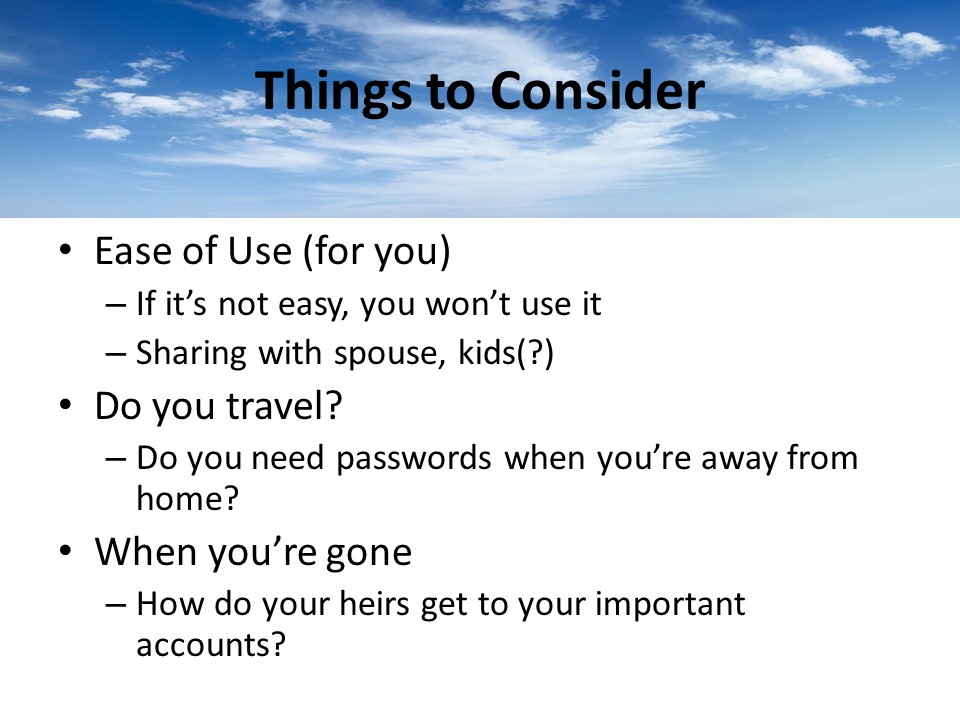
Encrypted and decrypted locally
Auto-logon, Auto-fill, “icon” choice in username/password fields of website, copy/paste of user name and password
Don’t actually recommend auto-logon or auto-fill – 2 people with different logins causes things to act differently
When there’s 1 login vs 2 (because with 2 logins, you really don’t want auto-logon to happen)
The icon allows you to choose which logon to use for the site.
Import and Export good for doing your own analysis, or for moving passwords from 1 product to another.
Bitwarden is the odd man – it’s exports aren’t imported well by others (you need to edit the .csv file).
2FA authentication can use a number of features – yubikey (hardware), authy or google authenticator (software)
Bitwarden extras – Yubikey, 1GB storage, TOTP authenticator key storage, health & hygiene reports, attach files to websites
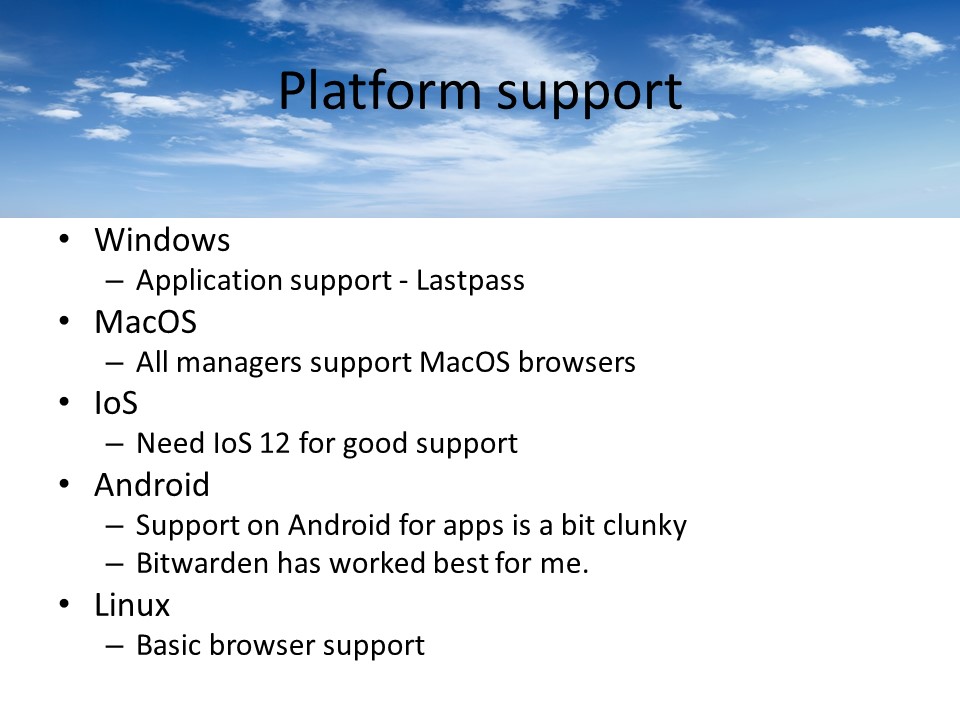
Put it on a USB drive and tell your successor where to find the drive (or give it to them if you trust them)
Don’t use a safe deposit box because of the hassle of probate for your successors to get to it.
TOTP = Time-based One Time Password (Authy, Google Authenticator). You normally don’t want to have your password manager handle
TOTP because that’s all your eggs in one basket – if your laptop gets stolen and hacked – they can log into your 2FA websites. Of course, if it’s
Your phone that’s stolen, your in trouble because it typically has your 2FA app on it as well.
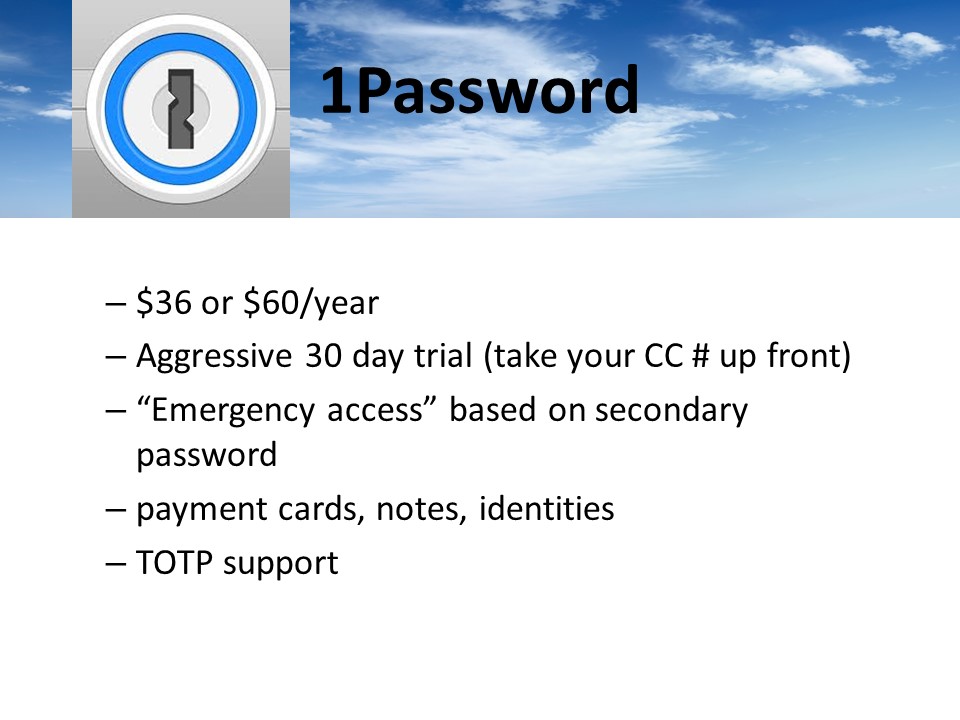
Keep “Emergency access” info on USB stick
Don’t use TOTP support – puts all your eggs in one basket and makes your 2FA less secure.
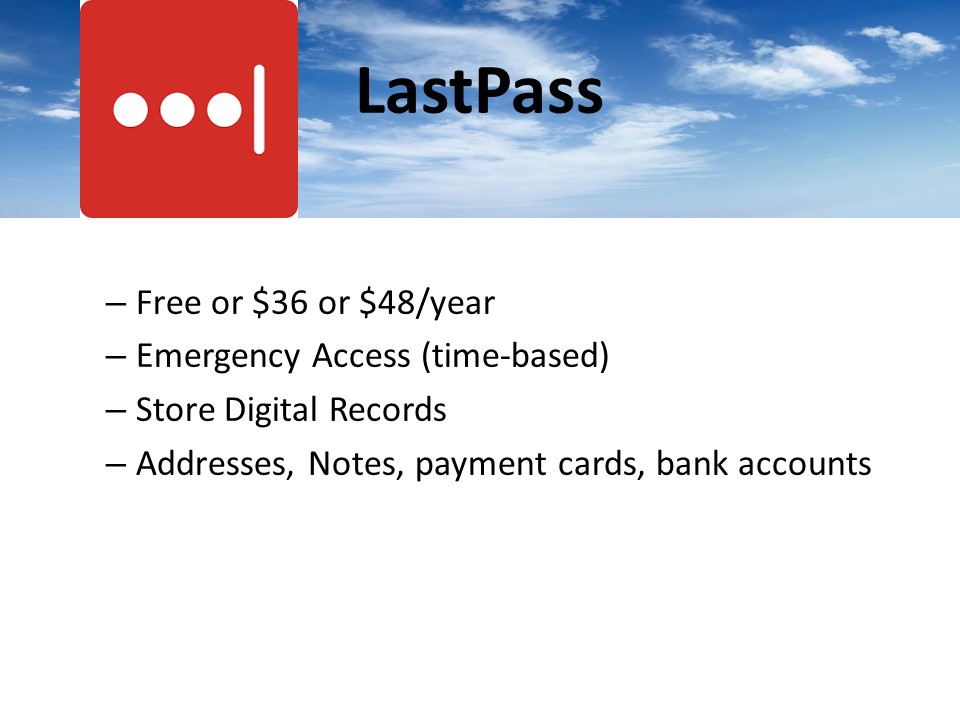
You can setup an lastpass user that can request access to your account. They must have a lastpass account.
Personally, I don’t use online forms or payment cards or bank accounts. Too much info in 1 place makes it easier
To hack. Also, slows you down just a little bit on those impulse spends J
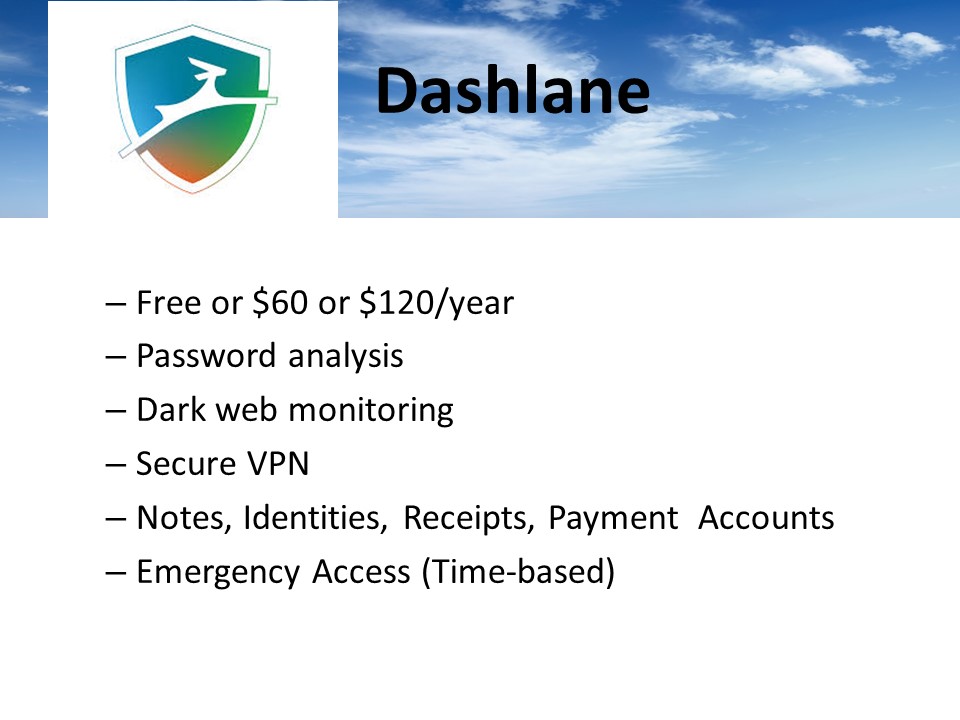
Free = 50 passwords and only autofill
$120 = credit monitoring, identity theft insurance, and identity restoration support
If you want secure VPN, try privateinternetaccess.com – very fast, keeps no log information
Emergency access requires at least a free dashlane account.

At this point Mike went to the PC and showed what each of the programs looked like and how easy it was to navigate around the software. He even connected his Android smartphone to show Bitwarden’s smartphone app.
Announcements
Club member Charles (Sparky) Livenspargar passed away last month. His memorial service will be March 3 from 11 – 2 at the Summerset IV Club House.
Jeff and his wife are moving to Trilogy in Rio Vista. Mike Quinn has volunteered to be Club President.
Jim Bush will continue as Secretary.